How to Fix OnePlus 15R Battery Draining Issue (20+ Methods)
If you are a new OnePlus user, you might not be aware of the battery-draining issue on this phone. If your phone is draining battery faster than usual, you are not alone. So, sit back and relax because today in this article I am going to share how to fix OnePlus 15R battery draining issue.
The OnePlus 15R is supposed to be a battery-focused phone. As we know, it comes with a large 7,400mAh battery, 80W SUPERVOOC charging, and OxygenOS 16 based on Android 16. On paper, that is more than enough for a full day of normal use—and potentially much more depending on how you use the phone. But some OnePlus 15R owners have reported a very different experience.
Some users say the battery started draining faster after a software update. Others have noticed unusually high idle drain, heating during normal use, or a sudden reduction in screen-on time compared with the first few weeks or months of ownership.
After researching OnePlus Community posts, I also saw complaints about battery drain returning after updates, while Reddit users reported everything from overnight drain to dramatically reduced screen-on time.
In many cases, the cause can be an app running in the background, weak 5G reception, a high refresh rate, location services, gaming, a recent software update, or simply a setting that is consuming more power than expected.
So before assuming that your battery is damaged, work through the solutions below.
ALSO READ: How to Fix Oneplus 15R Heating Issue
Table of Contents
How Do You Know If Your OnePlus 15R Battery Drain Is Abnormal?
A phone can lose battery quickly during gaming, 5G hotspot use, camera recording, video calls, or high-brightness outdoor use without having a battery problem.
The more useful question is:
Is your phone draining significantly faster than it normally did under a similar workload?
For example, if your OnePlus 15R previously gave you several hours of screen-on time under your normal routine but suddenly loses substantially more battery doing the same things, that deserves investigation.
Some owners have reported exactly this type of change. One recent user said their estimated battery life had fallen from around 14 hours of screen-on time to about 9.5 hours, while another reported serious drain after an update. These are individual experiences, not controlled laboratory tests, but they show why checking your own usage pattern matters.
Here are some good working methods to fix OnePlus 15R battery draining issue.
1. Check Which App Is Actually Draining Your Battery
This should be your first step, not the last.
Go to:
- Go to Settings
- Then Battery
- And tap on Battery usage details
The process might differ depending on the Build of Oxygen OS.
Look at which apps or services consumed the most battery during the last 24 hours. Don’t immediately assume that the app at the top is the culprit. Gaming, watching YouTube, or Instagram may naturally use a lot of power if you spent hours using it.
Instead, look for something unusual.
For example:
- You barely used an app, but it consumed a large percentage.
- An app shows unusually high background activity.
- A social media app keeps running when you aren’t using it.
- One application suddenly appears much higher than usual.
It is highly recommended to keep a journal of battery usage on a daily basic can help you to identify which apps are useful and which are consuming more power unnecessarily.
If you find a suspicious app, move to the next Method
2. Restrict Background Activity for the Problem App
If one application is clearly responsible for excessive background usage, don’t immediately uninstall it.
First, restrict its background activity. Follow these steps:
- Go to Settings
- Tap Battery
- Then Battery usage / App battery management
or through:
- Go to Settings
- Then tap on Apps
- Now tap on App management
- Then App
- Now tap on Battery
The steps might differ depending on the Oxygen OS version on your phone.
Restricting background activity can reduce battery consumption, but there is a trade-off: notifications may arrive late or some background functions may stop working normally. OnePlus explicitly warns about this behavior in its battery documentation.
So don’t restrict everything immediately and blindly. Target the apps that actually show abnormal behavior.
3. Look at Your Screen Refresh Rate
The OnePlus 15R comes with impressive refresh rates up to 165Hz. Higher refresh rates can make scrolling and supported games look buttery smooth, but they can also increase power consumption.
If battery life is more important to you than maximum smoothness, try using the adaptive or lower refresh-rate option.
Go to:
- Open the Settings app
- Display & brightness
- Screen refresh rate
Choose the adaptive/auto option if available. You don’t necessarily need to lock the phone to 60Hz. The goal is to avoid forcing the highest refresh rate all the time when you don’t need it. With this, you can fix Oneplus 15R battery draining issue.
4. Reduce Screen Brightness
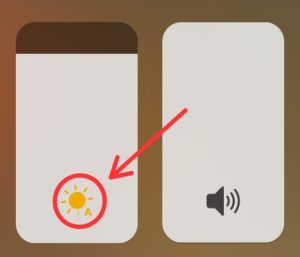
When it comes to power consumption, the display becomes a major source of it. If your brightness is permanently near maximum, especially outdoors or in bright indoor environments, don’t expect your battery to perform better. And automatic brightness is also a cause of consuming more battery.
Try:
- Open Settings
- Then Display & brightness
- Tap on Automatic brightness
- Turn off Automatic Brightness
A small reduction throughout the day can make a meaningful difference.
5. Check Whether 5G Is Causing Excessive Drain
You will be surprised to learn that the area where you live can also cause this issue. This is one of the most overlooked causes of battery drain. The problem can become more noticeable when the phone is constantly searching for or switching between networks, between 5G and 4G, particularly in areas with weak or inconsistent 5G coverage.
Some OnePlus 15R users have specifically mentioned 5G usage when discussing poor battery life. If you’re in an area where 5G coverage is inconsistent, try using 4G/LTE for a day.
After doing this trick, if you can see noticeable improvement in battery life, then connectivity has played a major role in this issue.
6. Test the Phone on Wi-Fi for a Day
Here’s a simple experiment. For one normal day, use Wi-Fi whenever practical. Don’t change ten other settings at the same time. Compare your battery consumption with a typical mobile-data day.
If battery life improves significantly, your cellular connection may be an important part of the problem. This doesn’t necessarily mean the phone is defective.
A phone working hard to maintain a weak cellular connection can consume considerably more power than one sitting on a strong Wi-Fi connection.
7. Turn Off Location Access for Apps That Don’t Need It
We use a lot of apps that require location. Not every application needs your location all the time. Apps like Shopping, food delivery, cabs, etc. To review which app is using location continuously, just follow these steps
- Go to Settings
- Then Location
- Now tap on App permissions
Review which apps have access to your location. For apps that don’t genuinely need continuous location access, change the permission where appropriate.
For example, a shopping app may not need your location running continuously in the background. Don’t disable location for everything, though. Navigation, ride-sharing, weather, and some security features may genuinely require it. You can choose location permission as per your requirement, and the options you will get are like
- Allow all the time
- Allow only while using the app
- Ask every time
You should choose“Ask Every Time”. If an application doesn’t need continuous location access, don’t give it unrestricted access. This can fix Oneplus 15R battery draining issue.
ALSO READ: How to Fix Tecno POVA Slim 5G Heating Issue
8. Turn Off Bluetooth When You Don’t Need It

Not majorly, but Bluetooth can also drain battery. However, if you aren’t using Bluetooth accessories/devices, you do not have to keep it enabled.
If you’re troubleshooting battery drain, temporarily turn Bluetooth off for several hours and compare your battery behavior. This is a test, not necessarily a permanent recommendation.
If disabling it changes nothing, you should still keep it turned off. After this, you can fix Oneplus 15R battery draining issue.
9. Reduce Always-On Display Usage
Smartphones with AMOLED displays, including the OnePlus 15R, come with some additional feel-good features like Always-On Display. Always-On Display is convenient, but it keeps the display system active in some form. If you’re experiencing unexplained idle drain, temporarily disable Always-On Display.
Go to:
- Go to Settings
- Then Wallpapers & style
- Tap on Always-On Display
If you feel this works, then you can keep the always-on display turned off; if it isn’t, then turn it on.
10. Disable Unnecessary Notifications
Notifications don’t simply appear from nowhere. Apps can wake the device, perform background work, and synchronize data before showing a notification. If you have dozens of apps sending notifications every day, review them.
Go to:
- Settings
- Notifications & status bar
- App notifications
Turn off notifications you don’t actually need. You don’t have to disable notifications from WhatsApp, banking apps or important services.
Start with:
- Shopping apps
- Games
- Promotional apps
- Unused social apps
- News apps you rarely read
- Apps that send unnecessary promotional alerts
This has the added benefit of reducing distractions.
11. Check WhatsApp, Instagram, Facebook and Other Social Apps
Many users have also complained that they face battery draining during using social media apps, but they couldn’t find the actual reason for that. Well, some social media apps need location access to operate; some need storage, and all.
After using them, we forgot to decline the permissions, and that keeps running in the background. OnePlus 15R users have specifically discussed social apps and background activity when investigating battery drain.
If Instagram, Facebook, Reddit, WhatsApp, or another app appears unusually high in Battery Usage, test it individually. Don’t immediately restrict all of them.
For example:
- Check Instagram’s battery usage.
- Restrict its background activity temporarily.
- Use your phone normally.
- Check whether the drain changes.
Repeat with another suspicious application if necessary. This gives you actual evidence instead of guessing. These social media methods will fix Oneplus 15R battery draining issue.
12. Check Whether Gaming Is the Real Cause

A basic point is that when you push anything beyond the limit, it will automatically use its full potential. Same for smartphones: whenever you play heavy games or online multiplayer games, your phone is not only using storage or internet but also using the processor, and that consumes maximum power from your phone.
The OnePlus 15R has high-performance hardware and a high-refresh-rate display. Running demanding games at high frame rates can consume substantially more energy than reading WhatsApp messages or browsing the web.
One user reported much faster battery consumption while playing at 165Hz compared with normal usage.
If battery drain occurs mainly during:
- BGMI
- Call of Duty
- Genshin Impact
- Wuthering Waves
- High-FPS games
then the phone may simply be operating at a much higher power level.
Try lowering:
- Frame rate, Graphics quality, Screen refresh rate, Brightness
Also avoid gaming while the phone is already very hot.
13. Don’t Use High Performance Mode Unless You Need It
High-performance modes are specially designed to enhance performance rather than efficiency. So high-performance mode increases power consumption. If you’re not gaming or doing a demanding task, keep the phone in its normal/balanced mode.
For everyday activities like:
- WhatsApp, Chrome, YouTube, Email, Instagram, Calls
You generally don’t need maximum performance all the time.
14. Update Your Apps
Updating apps on your phone is like giving your body fresh air. An outdated application can also behave badly after an Android or system update. To update apps, follow these steps:
- Open Google Play Store
- Tap on Manage apps & device
- Then tap on Updates available
Update your applications.
Pay special attention to apps that:
- Run in the background
- Use location
- Play video
- Use the camera
- Handle notifications
- Sync data continuously
If battery drain started immediately after an app update, note that too. After updating, you can fix Oneplus 15R battery draining issue.
ALSO READ: How to Fix Moto G54 5G Battery Draining Issue
15. Update Google Play System
Android’s underlying components can receive updates separately from the main OxygenOS update. It can help to prevent battery draining issue. To update, follow these steps:
- Go to Settings
- Then Security & privacy
- Tap on System & updates
- Then tap on Google Play system update
If an update is available, install it and restart the phone. This is especially worth checking after a major software update.
16. Restart the Phone
A common issue needs a common solution. So, this is the first thing you should do when you get these kinds of issues. And that is restarting your phone.
Whenever you feel that the temperature of your phone gets higher than normal, just restart it. When you restart your phone, all the temporary bugs and unwanted cache files get removed. And your phone gets a fresh start.
But it’s a temporary solution; read all the following methods to fix it permanently.
17. Give a New Software Update Some Time
This is particularly important after a major system update. When Android/OxygenOS updates, the phone may temporarily perform background tasks such as:
- App optimization
- File indexing
- Database processing
- Synchronization
- System optimization
Therefore, battery consumption immediately after an update isn’t always representative of long-term battery life. However, don’t use this explanation forever.
18. Check for a New OxygenOS Update
If you can see some drastic change in battery health or battery life after a particular software version, check whether OnePlus has released a newer build. For example, OnePlus released OxygenOS 16.0.8.300 for the 15R in June 2026 and later OxygenOS 16.0.9.401, with regional rollout occurring in stages.
However, OnePlus community reports have not been completely consistent as some users said battery life improved after updates, while others reported renewed drain following later updates.
That is why I would not tell every reader:
“Install the latest update and your problem will definitely disappear.”
There is no evidence for such a guarantee. And it will fix Oneplus 15R battery draining issue.
19. Use OnePlus’ Built-In Battery Optimization
Most other OS inclusing OxygenOS, include built-in battery optimization tools. To go to optimization, follow these steps:
- Open Settings
- Then Battery
- Battery optimization, power saving, or battery usage management.
OnePlus documentation describes a “Save power” optimization feature that can detect power consumption issues and optimize battery usage. This is preferable to installing random “battery booster” applications.
20. Enable Sleep Standby Optimization
You charge your phone to a certain percentage and sleep, but when you wake up, you see a drastic battery drain; that’s called overnight battery drain. Follow these steps:
- Open Settings
- Then Battery
- Tap on More settings
Enable it and monitor overnight drain. Remember that reducing background activity can affect the timing of some notifications. Basically, it works like a power-saving mode.
And for some, you can use power-saving mode also. Follow these steps:
- Open Settings
- Then Battery
- Tap on Power Saving mode
21. Remove Recently Installed or Suspicious Apps
Out of curiosity, we install some Malicious apps from 3rd party websites that are not available in the Google Play Store, and that can be the reason for the battery issue. Think about what changed immediately before the battery problem started.
Did you recently install:
- A VPN?
- A launcher?
- A battery monitor?
- A cleaner?
- A third-party keyboard?
- A wallpaper app?
- A game?
- A social media app?
- Malicious apps from 3rd party websited
If yes, uninstall or disable the suspect application temporarily. Don’t install five “battery optimizer” apps to fix the problem. They can create more background activity instead of solving it.
22. Don’t Factory Reset Too Early
A factory reset can solve software problems. And it’s a shortcut way to escape, but not to resolve. So, it should not be your first response. Before resetting your entire phone, just have a look :
- Which app is consuming battery.
- Whether the drain occurs during screen-on or screen-off time.
- Whether 5G is involved.
- Whether the problem started after an update.
- Whether the phone is overheating.
- Whether battery drain continues in a clean environment.
If you’ve already tried the sensible software troubleshooting steps and the problem remains severe, then a factory reset becomes more reasonable.
Back up your data first.
23. Check Battery Health Before Blaming Software
If you are a heavy user, then it’s very unfair to blame software; try to reduce the on-screen time.
OnePlus advertises the 15R’s battery as maintaining at least 80% capacity after four years under its stated conditions. Actual battery performance, however, varies with usage, temperature, charging habits, and other factors.
If your phone has:
- Severe battery drain
- Unexpected shutdowns
- Large percentage drops
- Excessive heat
- Very poor runtime despite low usage
and software troubleshooting hasn’t helped, have the battery checked by an authorized service center.
24. Watch the Temperature, Not Just the Percentage
If your phone loses battery quickly and becomes unusually hot even after doing nothing or while doing something simple such as browsing or sitting idle, don’t ignore the temperature.
A warm phone can be a symptom of:
- Heavy background processing
- Poor network conditions
- A demanding app
- Gaming
- Charging
- Software bugs
It also depends on the place where you live; if it’s normally a warmer or hot place, then that can be the reason. But:
Stop demanding tasks and allow the device to cool. If it becomes abnormally hot without an obvious reason, professional inspection is safer than continuing to stress the device. After all this, you can fix Oneplus 15R battery draining issue.
ALSO READ: How to Fix OnePlus Nord CE 3 Battery Draining Issue
What If Your OnePlus 15R Battery Started Draining After an OxygenOS Update?
This is one of the most important scenarios for 15R owners. There are variations in the community for the new updates.
There are multiple community reports says increased battery drain after new OxygenOS updates, including reports following the 16.0.7/16.0.8 period and later complaints after newer updates. On the other hand, other owners have reported good battery life on the same general device, which suggests that the experience is not universal. It depends on a lot of factors.
If your problem started immediately after an update, use this sequence:
Step 1: Update all apps.
Step 2: Check Google Play System Update.
Step 3: Restart the phone.
Step 4: Check Battery Usage Details.
Step 5: Look for unusual background activity.
Step 6: Test Wi-Fi versus 5G.
Step 7: Give the phone some time if the update was very recent.
Step 8: Check whether OnePlus has released another build for your region.
Step 9: If the drain remains severe, report it through OnePlus’ feedback/bug-report mechanism.
OnePlus has specifically provided a bug-report option through its Community app for Indian users, and its update threads direct users toward reporting device issues.
OnePlus 15R Battery Draining Overnight? Try This
If your main complaint is that the phone loses a large amount of battery while you’re sleeping, don’t start by reducing screen brightness.
The screen isn’t being used.
Instead, check:
- Battery usage details
- Background apps
- Mobile network signal
- 5G
- Location
- Always-On Display
- Bluetooth
- Hotspot
- VPN
- Sleep Standby Optimization
- Recently installed apps
Then perform a simple test:
Charge the phone to your normal level → disconnect the charger → leave it untouched overnight → check the percentage in the morning.
Repeat the test after changing only one or two variables.
That makes your result much more meaningful.
How to Find the Real Cause Instead of Trying 20 Fixes at Once
This is probably the most useful advice in this entire article. Don’t change everything simultaneously.
If you:
- Turn off 5G
- Disable Bluetooth
- Turn off location
- Disable Always-On Display
- Restrict 20 apps
- Switch to 60Hz
- Turn on Battery Saver
- Reduce brightness
- Uninstall apps
And your battery improves, but you still don’t know why it improved.
Instead, use a controlled approach.
Day 1
Use the phone normally and record:
- Starting battery
- Screen-on time
- Ending battery
- Main apps used
- Wi-Fi/5G usage
- Approximate temperature
Day 2
Change one major variable, such as 5G → 4G.
Compare.
Day 3
Restore the previous setting and test another variable.
This takes longer, but it gives you an actual answer.
When Should You Contact OnePlus Service?
Contact OnePlus support or an authorized service center if:
- The phone gets unusually hot during light use.
- Battery percentage suddenly collapses.
- The phone shuts down unexpectedly.
- Battery drain remains severe after software troubleshooting.
- Battery performance is dramatically worse than expected even under light usage.
- The phone shows charging abnormalities.
- You suspect physical battery damage.
- The device becomes swollen, or the back panel starts separating.
Don’t keep trying software tricks forever. If you see physical swelling or other signs of battery damage, stop using the phone and seek professional assistance.
Frequently Asked Questions
Is OnePlus 15R battery drain a common problem?
There are enough recent user reports to show that battery-drain complaints exist, particularly around certain software updates and individual usage conditions. However, that does not prove that every OnePlus 15R has a battery defect. Other users report excellent battery life on the same device.
Why is my OnePlus 15R battery draining so fast?
The cause can be anything from a power-hungry app or poor 5G reception to high refresh rates, gaming, background activity, location services, or a software issue.
The fastest way to identify the cause is to check Battery Usage Details first.
Does 5G drain the OnePlus 15R battery?
5G itself isn’t automatically a battery problem. However, weak or unstable 5G coverage can increase power consumption because the phone may work harder to maintain a connection. Testing 4G for a day can help determine whether network conditions are involved.
Should I disable RAM Expansion?
You can try disabling it as a troubleshooting step, especially because the 15R already has 12GB of RAM in its listed configurations.
But don’t expect this single setting to fix every battery problem.
Should I charge the OnePlus 15R to 100% to fix battery drain?
A full charge can be used as part of a troubleshooting experiment if your battery percentage seems inconsistent, and some users report improvement after doing so. But routinely draining a lithium-ion battery to 0% is not recommended as a general battery-maintenance strategy.
Does high refresh rate drain more battery?
Yes, higher refresh rates generally require more power than lower refresh rates, although the actual difference depends on the display technology, content, and adaptive behavior.
The OnePlus 15R supports refresh rates up to 165Hz.
Why does my OnePlus 15R heat up while the battery is draining?

Heat usually means the phone is doing more work than usual. Possible causes include gaming, camera use, high brightness, poor network conditions, background processing, charging, or a software/app issue.
If the phone becomes unusually hot during light use, investigate further rather than assuming it is normal.
Is a factory reset the best fix?
The short answer is a clear no. A factory reset should be considered after simpler troubleshooting steps have failed. Back up your important data before doing it.
Final Verdict
The OnePlus 15R comes with a massive 7,400mAh battery capacity, so unusually poor battery life should not automatically be dismissed as “normal smartphone behavior.” At the same time, battery performance depends heavily on software, network conditions, applications, display settings, and individual usage.
Recent user reports show that some 15R owners have experienced battery drain after software updates, while others continue to report excellent battery life. That difference is important.
It means there isn’t one magical setting that fixes every OnePlus 15R.
If your battery suddenly became worse, start by finding what is consuming the power. Check Battery Usage Details, investigate suspicious apps, test 5G versus 4G, review background activity, reduce unnecessary high-performance features, and make sure your apps and system components are updated.
And if the problem appeared immediately after an OxygenOS update, don’t assume that your battery is physically damaged. First, determine whether the change is software-related.
Most importantly, don’t disable every useful feature just to gain a few percentage points.
The goal isn’t to turn your OnePlus 15R into a basic phone.
The goal is to find the specific thing causing your battery to drain faster than it should—and fix that without sacrificing the features you actually bought the phone for.
If none of these methods make a meaningful difference and the phone is still draining abnormally or becoming unusually hot, it’s time to stop experimenting and have the device checked by OnePlus support or an authorized service center.
If you found this guide helpful, you can check out our other articles on smartphone problems and solutions.
If you have any feedback or suggestions, then share them in the comment box. Share this on social media with your friends who need this.
How to Fix Oneplus Nord 2 5G Heating Issue (10+ Methods)

How To Fix Realme X7 Max Heating Issue

How to Fix Oneplus Nord CE 2 5G Network Issue (10+ Methods)
About Author

Subham Das
Hello i am subham,